
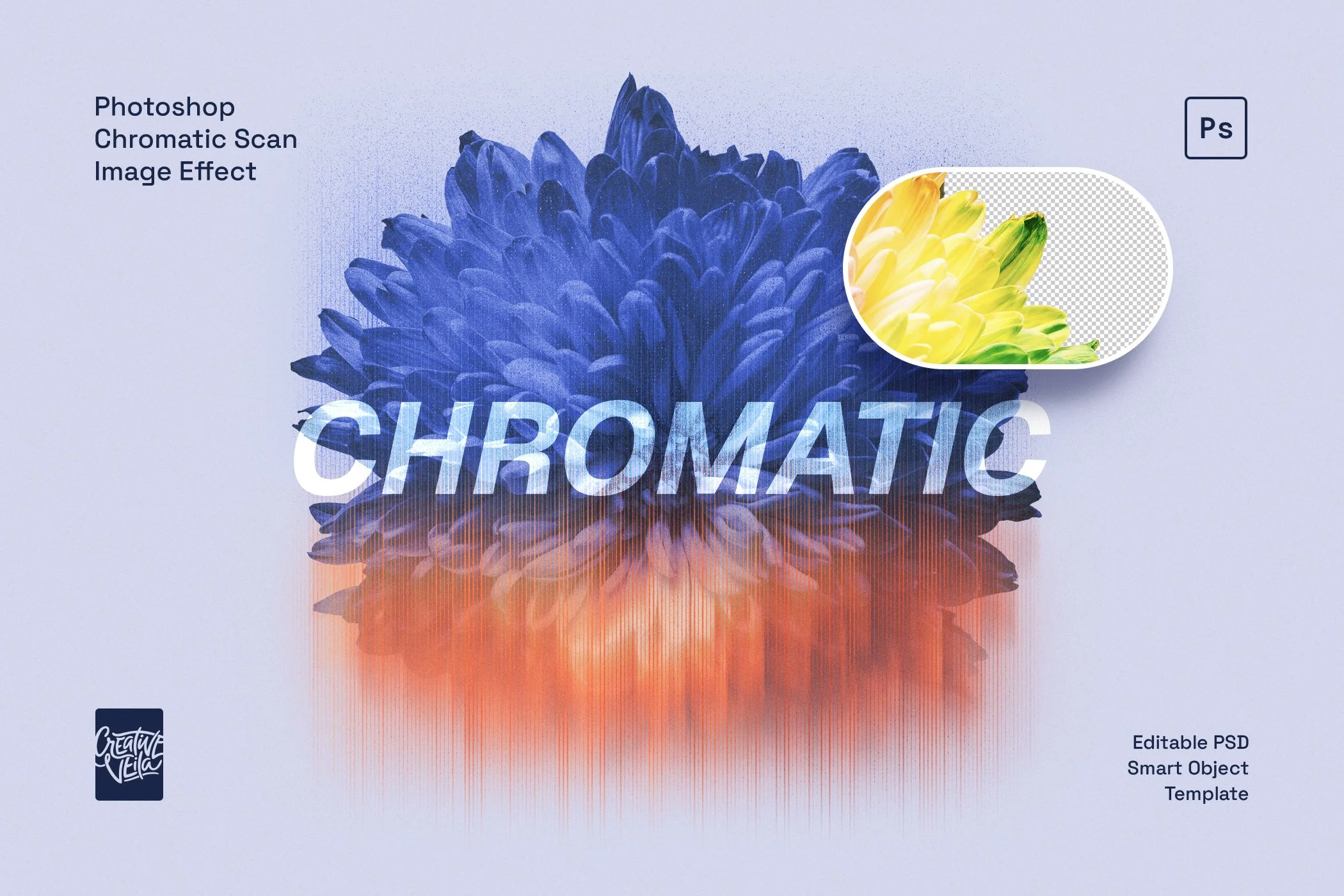
A streaked, grainy finish for your images
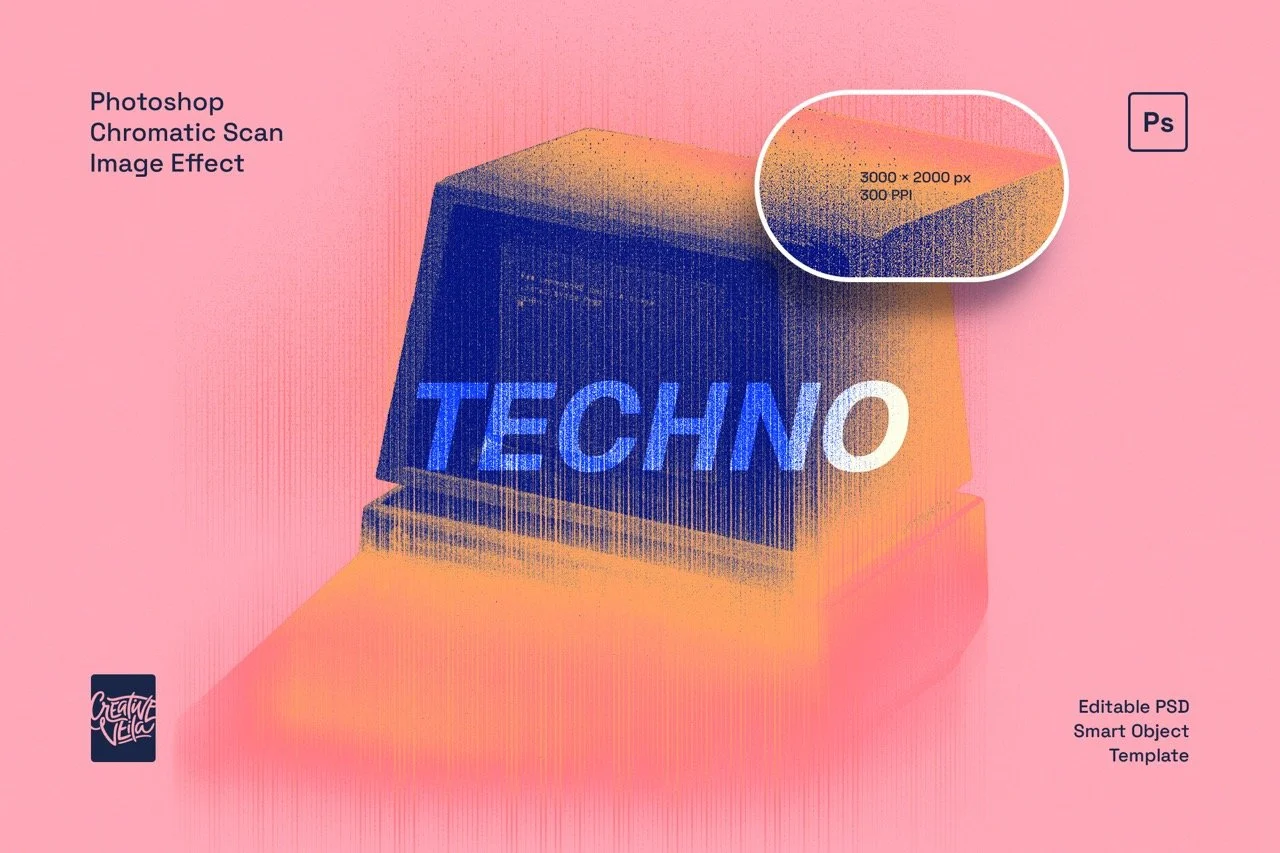
Chromatic Scan adds vertical scan lines and soft color trails to your images, with fine grain across the surface. The subject stays recognizable as its colors stretch below it. Use it on portraits, flowers, buildings, or everyday objects for posters, covers, and campaign graphics.
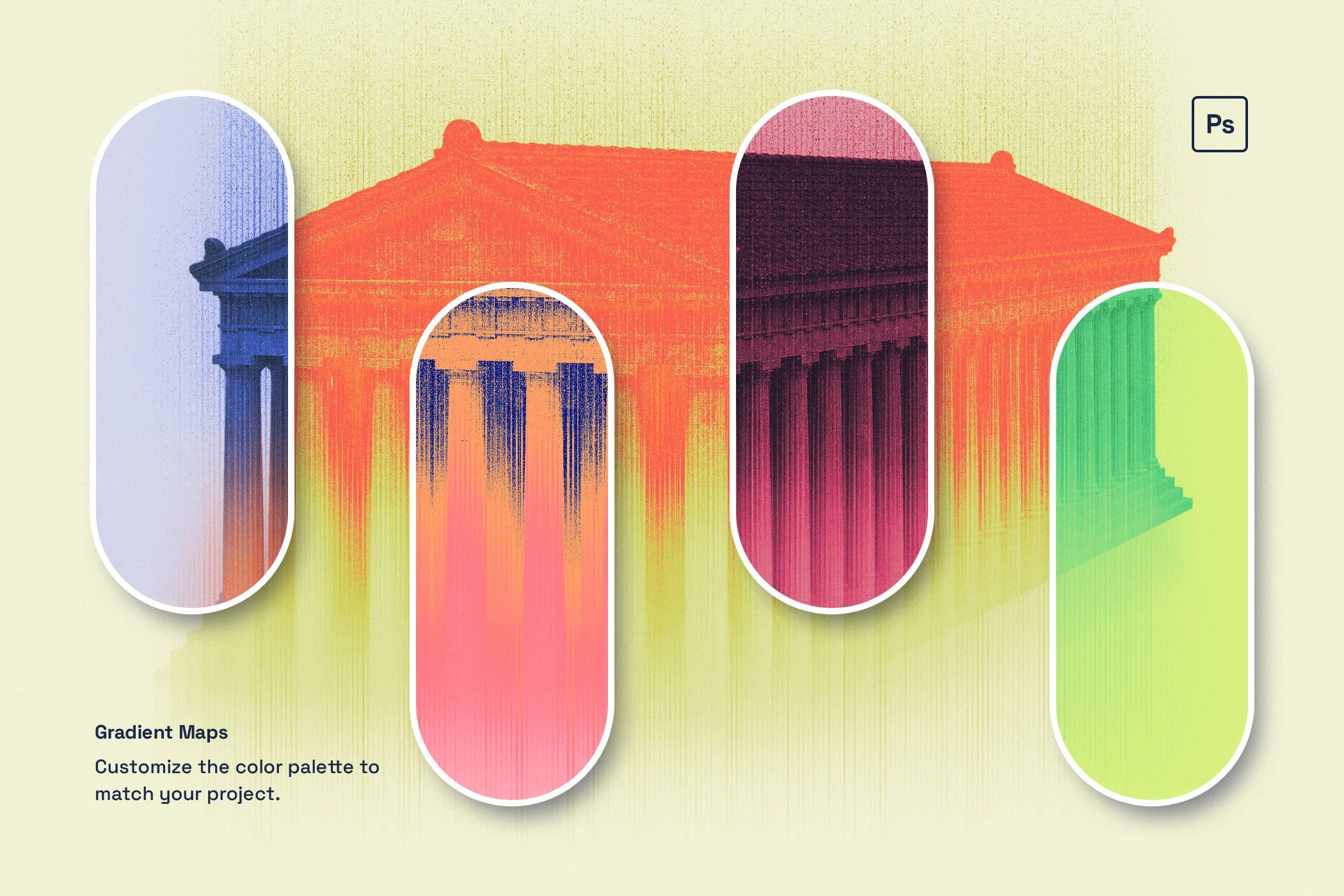
The effect is built into a layered Photoshop PSD. Open the image Smart Object, replace the sample with your own artwork, and save. Keep the blue-and-orange palette shown here, choose one of the four Gradient Map presets, or edit the colors yourself.
Adjust the colors and texture
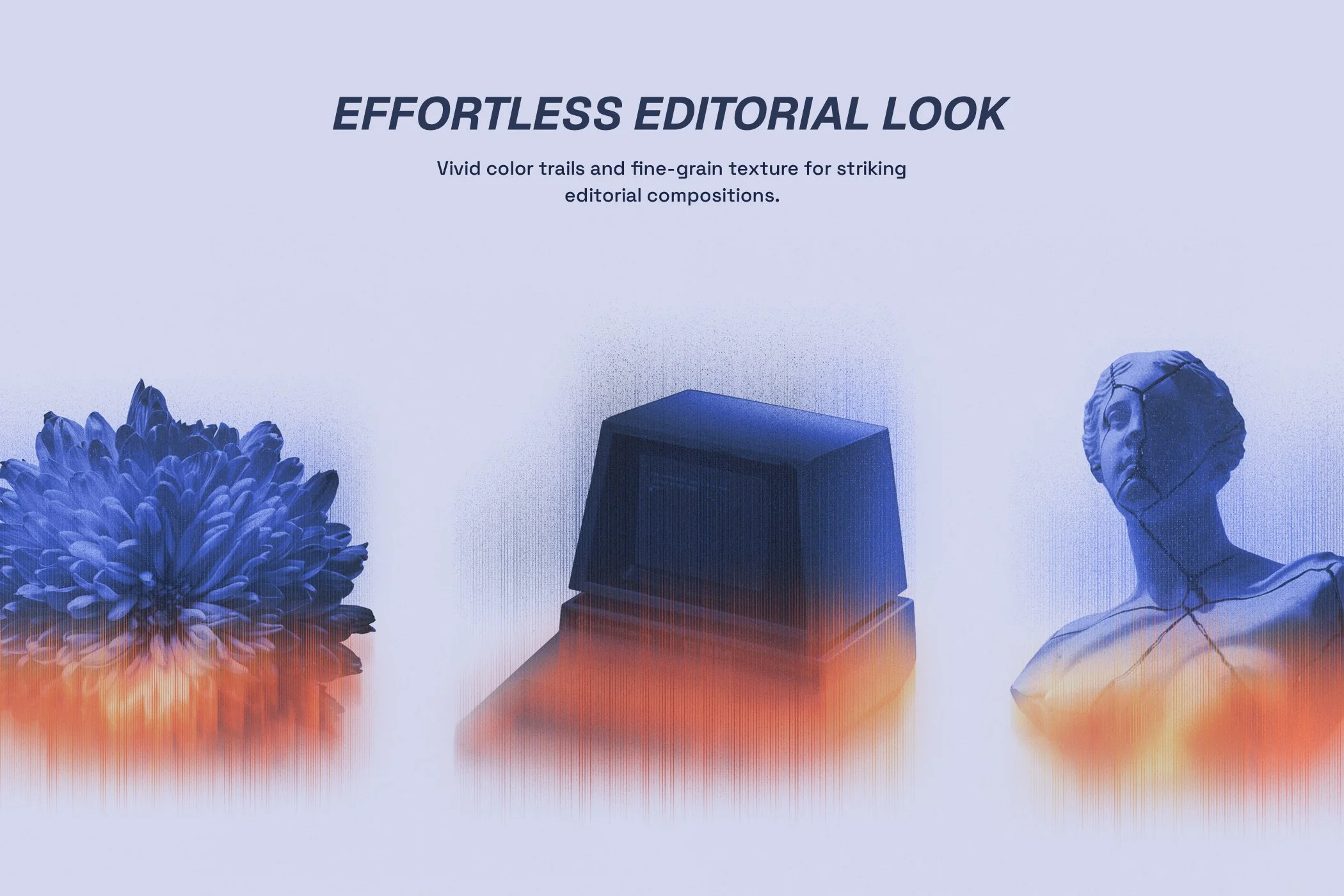
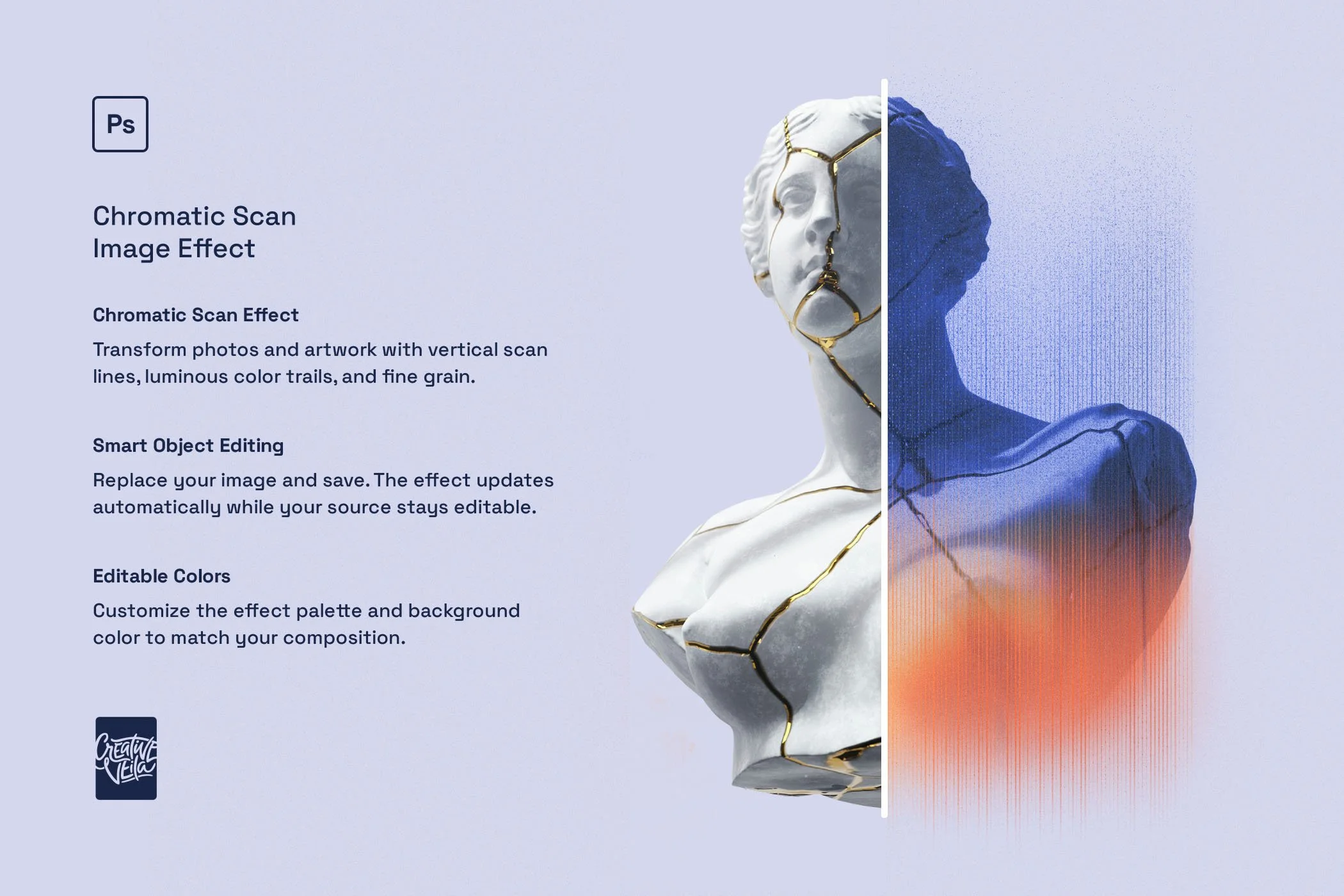
Scan lines and color trails
Fine vertical lines break up the image, while soft streaks extend its colors. Your subject remains recognizable beneath the distortion.
Editable Gradient Maps
The PSD includes four Gradient Map presets alongside the base color treatment. Edit them to match your artwork or reuse a palette across several images.
Grain and background
Adjust the fine grain and set the background color to suit your layout, whether you need a pale backdrop or a darker, higher-contrast image.
Smart Object editing
Replace the image inside the Smart Object and save to update the effect. You can return to the Smart Object to edit or replace your artwork at any time.
Where to use it
Editorial illustrations. Use a portrait, building, or object to illustrate a technology, culture, science, or finance story.
Album covers and gig posters. Start with a cutout image, then add the artist name, title, or event details around it.
Brand and social campaigns. Reuse a Gradient Map across launch graphics, carousels, banners, and presentation covers to keep the colors consistent.
Botanical artwork. Apply the effect to flowers and leaves for posters, packaging concepts, or seasonal graphics.
Architecture and landmarks. Use a recognizable building as the main image for an exhibition poster, city guide, or cultural event.
Conceptual illustrations. Add the streaked effect to a familiar object for a story about memory, movement, change, or digital technology.
For a series: Keep the palette and typography the same, then change the subject. This gives a flower, sculpture, and building a consistent look.
Template details
1 layered Photoshop PSD
3000 × 2000 px landscape canvas
300 ppi resolution
Smart Object image replacement
4 editable Gradient Map presets, plus the base treatment
Vertical scan lines and luminous color trails
Adjustable fine grain and background color
Illustrated PDF user guide
How to use it
Open the PSD in Photoshop and place your artwork inside the image Smart Object.
Save the Smart Object, then customize the Gradient Map, grain, and background.
Export your finished composition for your design project.
Frequently asked questions
-
Adobe Photoshop. A basic familiarity with layers and Smart Objects is helpful. Compatibility with Canva, Procreate, Affinity, or Photopea has not been tested.
-
High-resolution images with clear silhouettes. For results like the previews, prepare isolated subjects on transparent backgrounds.
-
Yes. Edit the four Gradient Map presets, use the base treatment, and change the background color. You can also adjust the fine-grain texture.
-
No. It is an editable PSD template. Replace the Smart Object image to apply the effect.
-
The canvas is 3000 × 2000 px at 300 ppi. Final print quality also depends on your source image and output size.
-
Review the Commercial License and Extended License terms for your intended use before purchasing.
More photo effects
Try Glass Distortion Photo Effects for a refracted image or Creative Sketch Photo Effect for a hand-drawn look. Both are sold separately.



A modern text effect inspired by blueprints, grids, and UI design, perfect for tech-forward visuals, bold headers, and clean editorial layouts.